Creating a Next Js App
What is Next.Js ?
Next.Js is React framework used for building web apps and website , You can use Next.Js to build static websites and dynamic websites base on your needs. Next.Js is a framework that is built on top of React Js and i myself use it in almost all my projects. One reason i like to use it is because of it simplicity and the lots of other benefits that comes with it.
Why use Next.Js ?
- File base routing system.
- Dynamic Api Routes.
- Automatic code splitting.
- Image Optimization.
- It has support for other languages like Typescript and css processors.
Enough of the talk lets get started.
Installing Next Js
$ yarn create next-app my-next-app
The above command will create a new Next.Js app in a folder called my-next-app. You would be asked if you want to use typescript and you can choose yes or no.
 √ Would you like to use TypeScript with this project? ... No / Yes
 ? Would you like to use ESLint with this project? » No / Yes
 √ Would you like to use ESLint with this project? ... No / Yes
 ? Would you like to use src/ directory with this project? » No / Yes
 √ Would you like to use src/ directory with this project? ... No / Yes
 ? Would you like to use experimental app/ directory with this project? » No / Yes
 √ Would you like to use experimental app/ directory with this project? ... No / Yes
 ? What import alias would you like configured? » @/*
It checks if you want to use the '@/ alias' for your imports and you can choose yes or no. Basically , this was introduced in next 13 , which is still in development although the beta version is out. Ater the installation is complete , you can cd into the folder and run the app.
Running the app
 $ cd my-next-app
 $ yarn dev
   or
 $ npm start
The above command will start the app in development mode. You can now open http://localhost:3000/ with your browser to see the result. You can start editing the page by modifying pages/index.js. The page auto-updates as you edit the file. API routes can be accessed on http://localhost:3000/api/hello. This endpoint can be edited in pages/api/hello.js. You can also open http://localhost:3000/api/hello to see your new API endpoint.
Working Directory
You will have a working directory that looks like this:
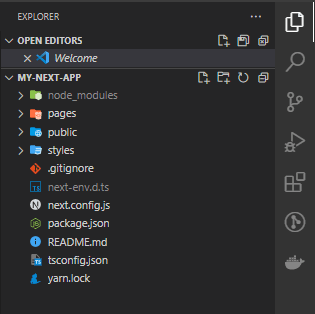
From the above Image , we have the following files and folders
- pages folder : This folder contains all the pages of the app.
- styles folder : This folder contains all the styles of the app.
- public folder : This folder contains all the static files of the app icluding images.
- gitignore file : This file contains all the files that should be ignored by git so when you push to git this files wont be sent along example of such is the node modules folder.
- next.config.js : This file contains all the configuration for the app.
- package.json : This file contains all the dependencies of the app.
- tsconfig.json : This file contains all the typescript configuration for the app i.e because i initaited a typescript project. The rest of the files are just the default files that comes with a next js app and you will know what they do as you use Next.js.
Creating a page
To create a page , you just need to create a file in the pages folder and next js will automatically create a route for it. For example , if you create a file called about.js in the pages folder , you can access it by going to http://localhost:3000/about. Easy right , that way you don't need to install any external library to create routes for your app.,All you need to do is to import Link from Next js and use it to create links to your pages.
// pages/index.tsx
import Link from 'next/link'

export default function Home() {
  return (
    <div>
      <h1>Home</h1>
      <Link href="/about">
        About
      </Link>
    </div>
  )
}
From the above code , we are importing the Link component from Next.js and using it to create a link to the about page.
Creating a dynamic page
To create a dynamic page , you just need to create a file in the pages folder and add square brackets around the name of the file. Most commonly , you see [slug].js , this is because it is used to create dynamic pages. So, inside your pages folder , create a file called [slug].js and add the following code.
// pages/[slug].tsx
import { useRouter } from 'next/router'

export default function Post() {
  const router = useRouter();
  const { slug } = router.query;
  return <div>Post: {slug}</div>;
}
From the above code , we are importing the useRouter hook from Next.js and using it to get the slug from the url and display it on the page. To get to the page , you just need to go to http://localhost:3000/your-slug.
// /page/index.tsx
import Link from 'next/link'

export default function Home() {
  return (
    <div>
      <h1>Home</h1>
      <Link href="/about">
        About
      </Link>
      //to the slug page
      <Link href="/[my-dynamic-page]" >
        My Slug
    </div>
  )
}
From the above code ,the Link component has a href attribute which is set to the slug page and when you click on the link , you will be redirected to the slug page. so whatever you type in the href attribute will be the slug.
Using getStaticProps
getStaticProps is a function that is used to fetch data from an api and pass it to the page as props. The getStaticProps function is called at build time and the data that is returned is cached and will be reused on subsequent requests. We are going to make use of the fakestore api to fetch data and display it on the page.
// pages/index.tsx
import { GetStaticProps } from 'next'

export default function Home (props){
  return (
    <div>
      <h1>Home</h1>
      <div>
        {props.products.map((product) => (
           <Link key={product.id} href={'/' + product.id }>{product.title}</Link>
        ))}
      </div>
    </div>
  )

}
//from the code above , the data from the getStaticProps or getServerSideProps is passed to the page as props and you can access it using props.products
or
// from below we are destructuring the products from the props object and using it to display the data on the page

export default function Home({ products }) {
  return (
    <div>
      <h1>Home</h1>
      <div>
        {products.map((product) => (
          <Link key={product.id} href={"/" + product.id}>
            {product.title}
          </Link>
        ))}
      </div>
    </div>
  );
}

export const getStaticProps: GetStaticProps = async () => {
  const res = await fetch("https://fakestoreapi.com/products");
  const products = await res.json();
  return {
    props: {
      products,
    },
  };
};
Using getServerSideProps
getServerSideProps is a function that is used to fetch data from an api and pass it to the page as props. It is similar to getStaticProps but the difference is that it is called at request time and not at build time so which means anytime you go to the page , it will be called and the data will be refecthed.
// pages/index.tsx
import { GetServerSideProps } from 'next'

export default function Home (props){
  return (
    <div>
      <h1>Home</h1>
      <div>
        {props.products.map((product) => (
           <Link key={product.id} href={'/' + product.id}>{product.title}</Link>
        ))}
      </div>
    </div>
  )

}
//from the code above , the data from the getStaticProps or getServerSideProps is passed to the page as props and you can access it using props.products
or
// from below we are destructuring the products from the props object and using it to display the data on the page

export default function Home({ products }) {
  return (
    <div>
      <h1>Home</h1>
      <div>
        {products.map((product) => (
          <Link key={product.id} href={"/" + product.id}>
            {product.title}
          </Link>
        ))}
      </div>
    </div>
  );
}

export const getServersideProps: GetServersideProps = async () => {
  const res = await fetch("https://fakestoreapi.com/products");
  const products = await res.json();
  return {
    props: {
      products,
    },
  };
};
Using getStaticPaths for dynamic pages
Imagine you have a page that displays a list of products and you want to create a page for each product. You can do this by using getStaticPaths and getStaticProps , they both work in sync to create dynamic pages. The getStaicPaths function is used to generate the paths for the dynamic pages and the getStaticProps function is used to fetch the data for each page.
Here we are going to fetch each product from the fakestore api and create a page for each product using the id as the slug. For this create a folder called products inside the pages folder and create a file called [id].tsx inside the pages folder. The [id] is the slug and it is used to get the id of the product from the api.
// pages/products/[id].tsx
import { GetStaticPaths, GetStaticProps } from 'next'

export default function Product({ product }) {
  return (
    <div>
      <h1>{product.title}</h1>
      {product.description}
    </div>
  );
}

// the getStaticPaths function is used to generate the paths for the dynamic pages
export const getStaticPaths: GetStaticPaths = async () => {
// fetch all products
const res = await fetch("https://fakestoreapi.com/products")
const products = await res.json()
// map all products to get their paths using their id
const paths = products.map((product) => ({
params: { id: product.id.toString() },
}))
// fallback false means that other routes should 404. and return the paths
return {
paths,
fallback: false
}
}

// the getStaticProps function is used to fetch the data for each page
export const getStaticProps: GetStaticProps = async (context) => {
// the getStaticProps returns the path params as context.params and we destructured the id from it
const { id } = context.params
// using the id we fetch the product from the api
const res = await fetch("https://fakestoreapi.com/products" + id )
const product = await res.json()
// return the product as props
return {
props: {
product,
},
}
}
Learn More
To learn more about Next Js, take a look at the following resources:
- Next Js Documentation - learn about Next Js features and API.
- Learn Next Js - an interactive Next Js tutorial.
 About Richard
Richard is a passionate frontend developer and comfortable with utililizing programming language/frameworks such as Javascript, React, Next js and others. I'm passionate about solving problems, building products from concept to delivery.